How to Scan Sheet Music and Hear It Played Back
Wondering how to scan sheet music and hear it played back? In this guide, we walk you through scanning music notes with your iPhone or iPad, from laying the page flat to checking the first bar by ear, with a clear picture for each photo habit.

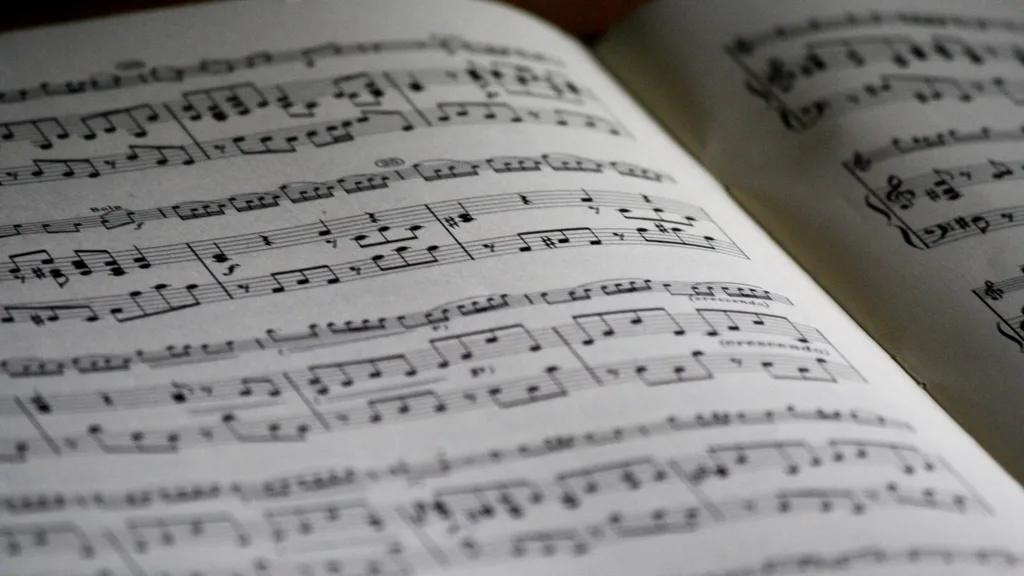
You have a page of music in front of you: a band part, an exam piece, a song from an old book. You want to hear how it goes before you play it, or check a bar you keep getting wrong. You have heard that you can scan sheet music with your phone and hear it played back, and you want an app that will read your music sheet for you.
Scanning sheet music is simple in principle. You take a photo of a printed page, software reads the music notes off the photo, and the result is a score you can press play on. Most of what separates a perfect read from a messy one is not the music. It is the photo, and a few small habits fix almost all of it. If you are still choosing an app, our comparison of music reader apps that read and play your sheet music shows which ones read the notes and which only show the page, and our guide to the best app to scan sheet music compares the scanners themselves on iPhone, iPad, Android and computers.
In this guide we explain what a scanner actually does, then walk you through scanning a page step by step, with a picture for each photo habit. After that, we cover scanning on an iPad or from a PDF, what you can do with the score once it is read, and how to fix a scan that sounds wrong. At the end, we show you how to practise with the page playing back.
What scanning sheet music means
To scan sheet music means to photograph a printed page and let software read the music notes on it, so the page turns into a score that can play back. On an iPhone or iPad, a scanning app such as Sheetly (sometimes called a music note scanner) does the whole job in one go: you take the photo, the notes are read, and you press play to hear what the page says.
A photo is a picture of a page. A scan, in this sense, is a photo that has been read: turned back into the notes, rhythms and markings the printer put there. Once the page is notes instead of pixels, a computer can play it, slow it down, change the instrument or hand it to notation software.
The reading is called optical music recognition, or OMR. It is the musical cousin of the text recognition that reads a scanned letter, but music is harder. A note's height on the staff is its pitch, several voices can share one moment, and one sharp changes every later note on that same line or space for the rest of the bar. To return a playable score, a scanner has to find the staves, group them into instruments, read each clef and key, work out the beats and assign notes to the right hands.
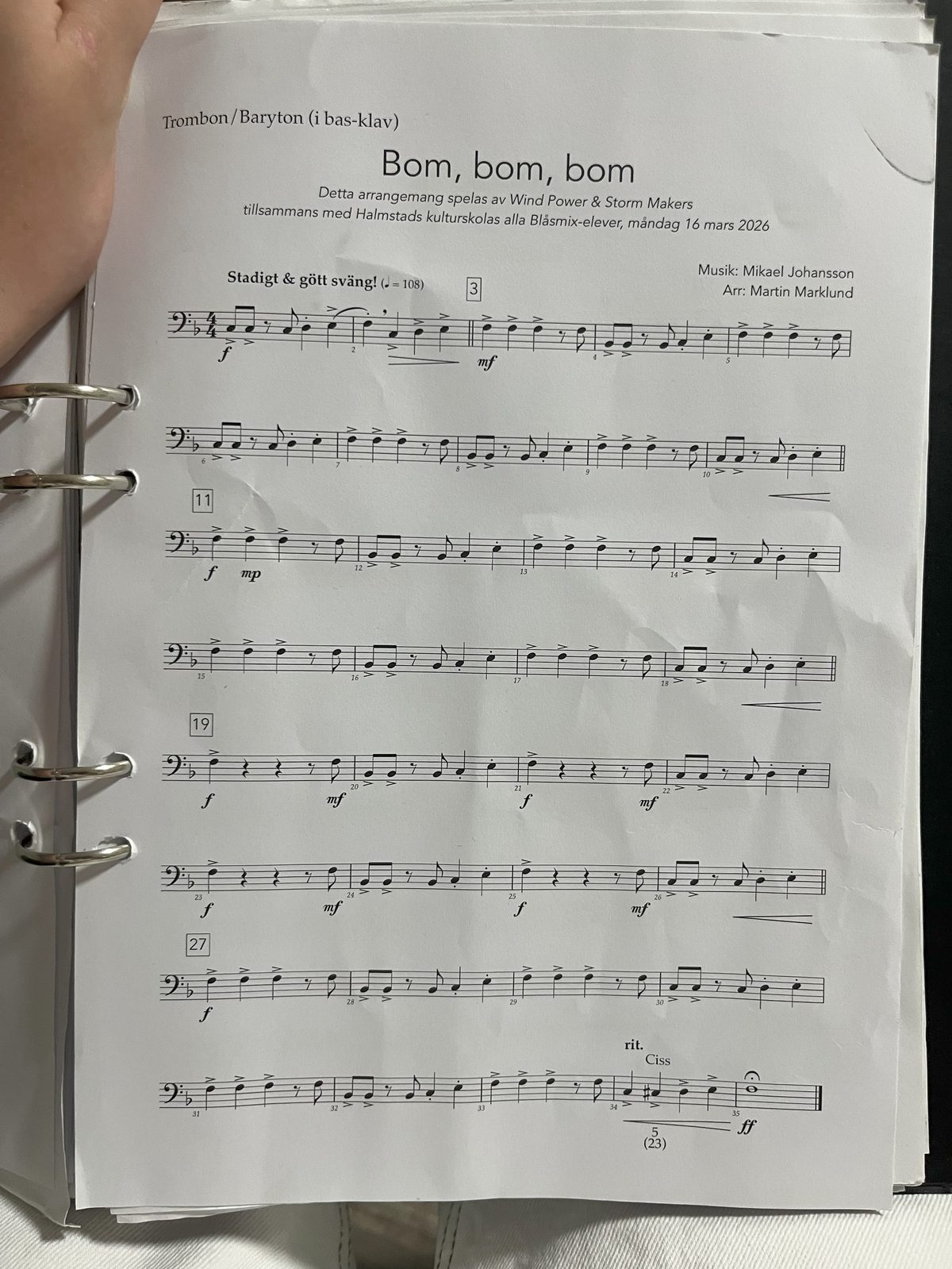
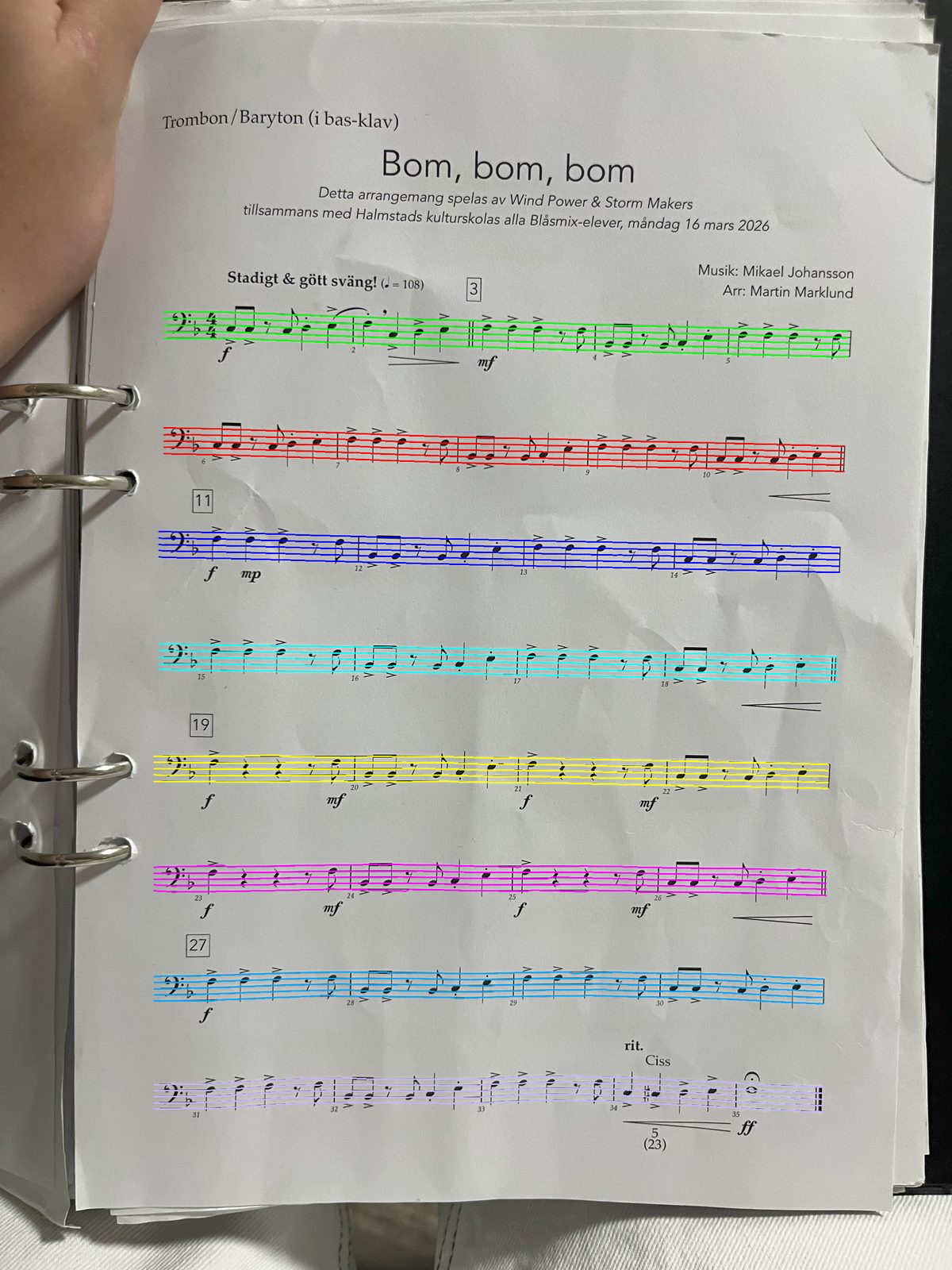
Sheetly copes with surprisingly rough photos, like the binder page above. In our own testing in October 2026, on test pages made to look like phone photos, Sheetly scored 97% on a strict note-by-note test, where Audiveris, a free open-source scanner, scored 50% on the same pages. Closed apps such as PlayScore 2 and ScanScore were not part of the test. You can see how we measured. Even so, a better photo always helps, so here is how to take one.
How to scan sheet music
Step 1: Lay the page flat
Put the music on a table, not in your hands or on a tilted music stand. A curved page is the biggest single cause of mistakes, because a scanner measures everything against five straight, parallel, evenly spaced staff lines. When the lines bend, notes seem to slide up or down a step.
In a book, press the page down near the spine with your free hand, or hold it open with a clip. A stubborn corner can be weighed down with a phone case or a pencil box.
Step 2: Hold the phone straight above the page
Hold your phone parallel to the paper, directly above the middle of the page. Look at the edges of the page on the screen: they should form a rectangle, not a trapezoid.
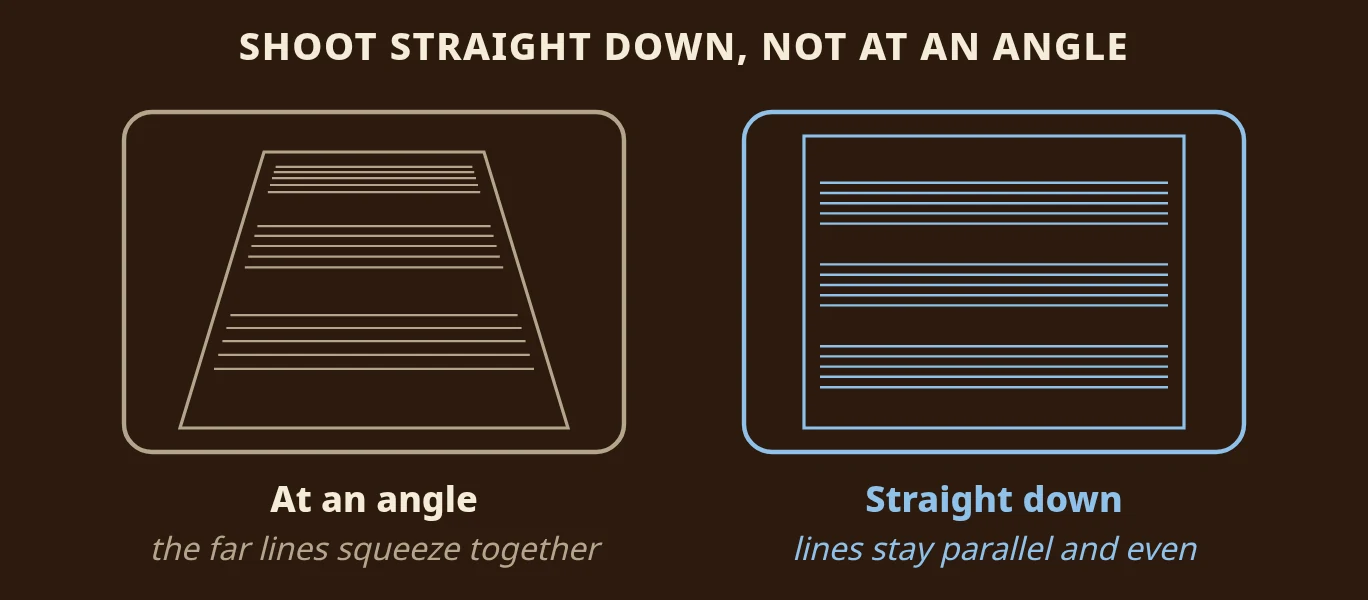
When you shoot at an angle, perspective squeezes the far end of the page. Staff lines get closer together, and two ledger lines can look like one. That turns a C into an A, or a note on a line into a note in a space. Shooting straight down keeps every staff the same size from top to bottom.
Step 3: Get even light and turn the flash off
Use bright, soft light, with your own shadow off the page and no window reflecting in a corner. Ordinary room light plus some daylight is usually ideal. A single harsh lamp from one side is not.
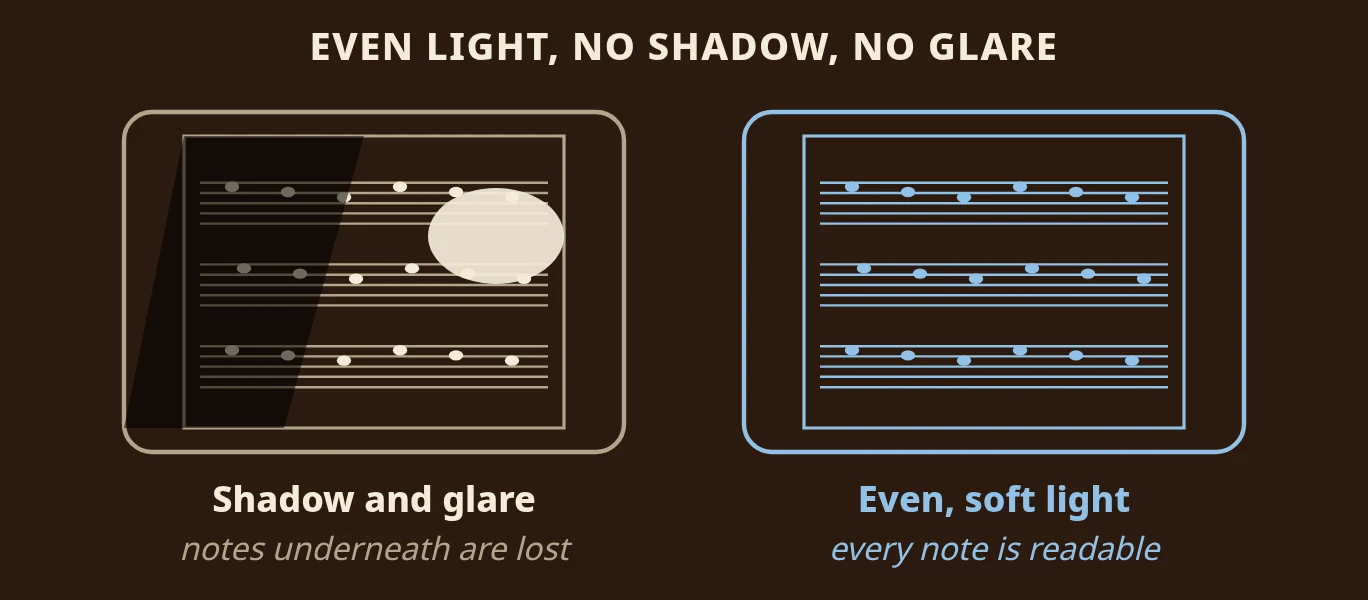
Turn the flash off. On glossy paper, flash leaves a bright white spot that erases whatever is underneath it, and a shadow across a staff makes notes too dark to tell apart. If the room is too dark without flash, move somewhere brighter rather than turning it on.
Step 4: Fill the frame, one page at a time
Move the phone close enough that the music fills the width of the screen, with a little margin around the page. Detail spent on the table is detail lost from the note heads. Do not photograph the whole desk and crop later.
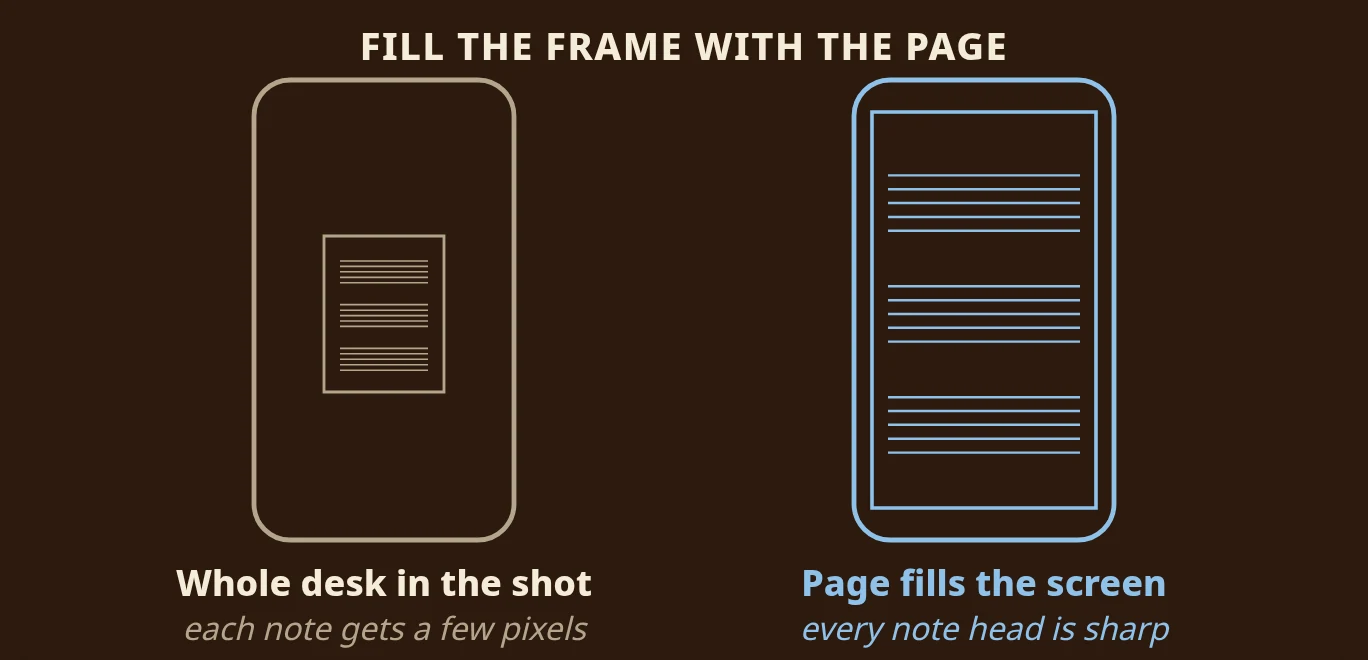
The phone's camera has a fixed number of pixels. When the page covers only a small patch in the middle of the picture, each note head is drawn with just a few of them, and a note on a line starts to look like a note in a space. When the page fills the screen, the same camera spends all its detail on the music.
For a book, photograph each page separately rather than the open spread. A spread halves each page's detail and curves at the spine. Pieces of two to four pages are no problem: you can photograph them in one go, in order, and Sheetly joins them into one continuous score, so a three-page piece plays from the first bar to the last without stopping.
Step 5: Take the photo, or import the file
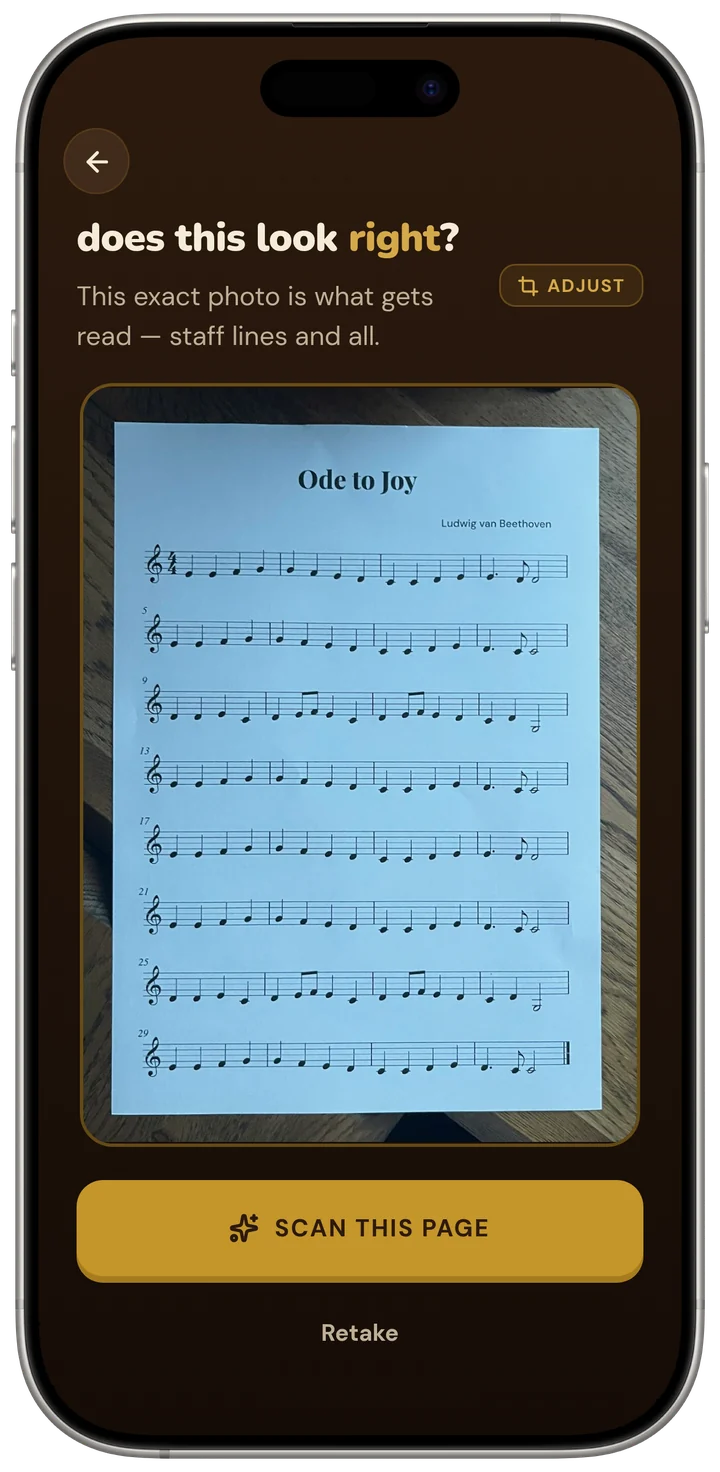
In Sheetly, tap Scan and take the photo. Sheetly shows you the exact photo before it reads it, so a cropped last bar or a blurry corner is caught right away, and you can retake it in a second. If the music is already on your phone, import a photo from your camera roll or a PDF instead. A PDF of printed music is the best case of all: already flat, square and evenly lit. If someone sent you a picture of a part, our guide on how to play sheet music from a picture covers what reads well and what to do once it plays.
Step 6: Listen once before you trust it
When the score comes back, press play and listen once, straight through, at a steady tempo. A misread pitch is obvious to the ear and nearly invisible on the screen, so this is the fastest way to check the read.
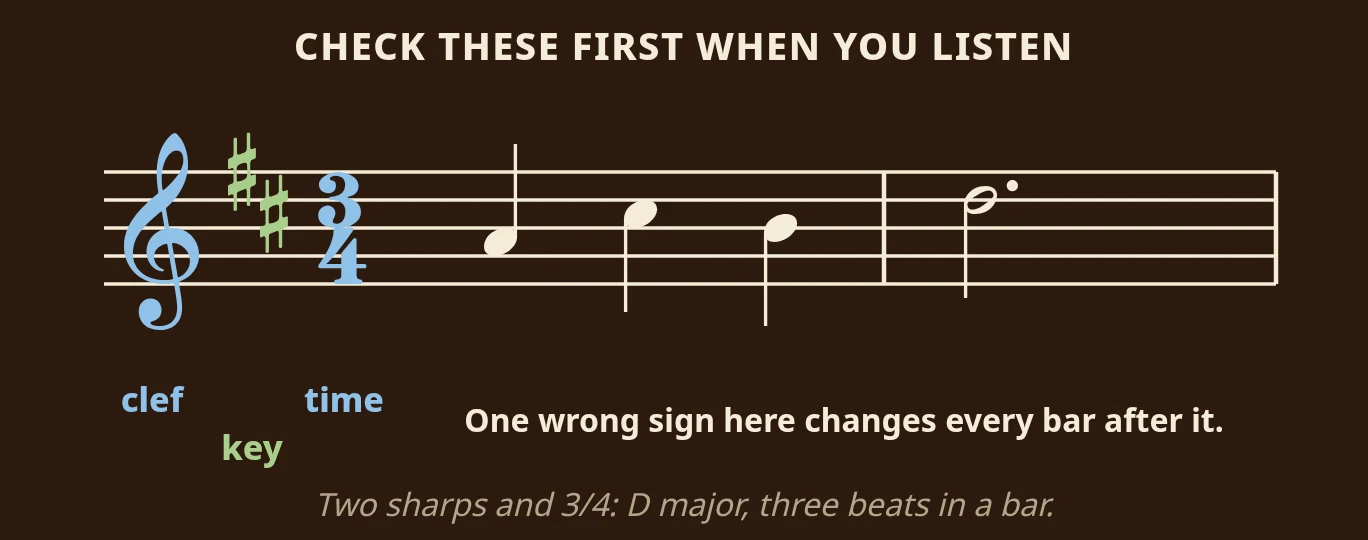
Start by checking the clef, key signature and time signature on the first line. One wrong sign there makes a whole page sound wrong even when every note is read correctly. If the key or the beat sounds off from the very first bar, that is where to look.
If something is wrong, rescan before you do anything else. A retake with better light and a flatter page fixes more errors than anything else you can try. And expect hard cases to be harder: very dense chords, many ledger lines, tiny print and cramped modern engraving genuinely challenge a scanner, Sheetly included.
How to scan sheet music on iPhone, iPad or from a PDF
The steps above work the same on an iPhone and an iPad. What changes is how you hold the device and where the music comes from. A phone is easiest to hold straight over a page, an iPad gives you a bigger picture to check, and a PDF or a flatbed scan skips the photo problems altogether.
On iPhone
An iPhone is an easy way to scan music notes, because it is light enough to hold perfectly level with one hand. Stand up, put the page on a table in front of you and hold the phone over the middle of it, so you are not leaning in from one side. If your hand shakes, brace your elbows against your sides. Take a moment to look at the screen before you tap: four straight page edges, the whole page inside the frame, no shadow from your arm.
On iPad
An iPad is heavier, so hold it with both hands and keep it level, or you will get the angled, squeezed shot from Step 2. The big screen is a real advantage afterwards: the score is easier to follow with the playhead, and on a music stand it reads like the printed page. Sheetly works on both iPhone and iPad, so you can scan with whichever one you have to hand.
From a PDF or a flatbed scanner
If your music is already a PDF, from IMSLP, a publisher's download or an email from your teacher, import it instead of photographing a screen or a printout. As Step 5 says, it is the cleanest input there is.
If you have a flatbed scanner or a printer that scans, it can turn a paper copy into the same kind of clean file. Scan the page in greyscale or colour at around 300 dpi, save it as a PDF, and import that. Very low settings blur thin staff lines, and there is no need to go far above 300 dpi for printed music. Send the PDF to your iPhone or iPad, open it in Sheetly, and it is read just like a photo.
On Android or a computer
Sheetly runs on iPhone and iPad. If you only have an Android phone, or you want to scan on a Windows or Mac computer, our comparison of the best sheet music scanner app for each device lists what is available there. The photo habits in this guide are worth keeping whichever app you use.
What you can do after you scan
A scan gives you a score, not a recording. Because the app knows every note, it can play the page at any speed, on another instrument, and loop any bar you choose. In Sheetly, once you scan sheet music you can hear it played back with a playhead that follows the notes, loop one bar, change the tempo, record yourself and ask questions about the page.
Hear it played back
Press play and the playhead moves through the music as it sounds, so your eyes and ears stay in the same bar. This is where most people start: hear the whole page once, so you know how it should go before you try it yourself.
Save it as PDF, MIDI or MusicXML
Sheetly can export the scanned score as a PDF, a MIDI file or a MusicXML file. MIDI is handy for a keyboard or a recording program. MusicXML opens in notation software such as MuseScore or Sibelius, which is the route to take if you want to edit the notes or print a new copy. Our guide on how to turn a PDF into MusicXML explains when that is worth doing.
Why a scan sounds wrong, and how to fix it
When a scanned page sounds wrong, the photo is the cause far more often than the music. The table below matches what you hear with the most likely cause and the fix. In almost every case the fix is a better photo, so retake it before anything else.
| What you hear | Most likely cause | What to do |
|---|---|---|
| The same notes sound sour all through the piece (every F, say) | The key signature was misread: the left edge was cut off, shadowed or curled | Retake with the left edge fully in the frame |
| The beat feels wrong from bar 1 | The time signature was misread | Check the time signature on the first line, then retake straighter and closer |
| Notes are a step too high or low at one end of the page | An angled photo squeezed the far staff lines together | Hold the phone flat over the middle of the page |
| Wrong notes near the spine of a book | The page curves into the binding | Press the page flat or photograph a photocopy |
| One patch of the page is wrong or missing | Flash glare or a shadow covered those staves | Flash off, even light, your arm out of the way |
| The last bar or line is missing | The bottom of the page was cropped | Leave a small margin around the whole page |
Two things a better photo cannot fix: handwritten music and very dense, cramped engraving. Sheetly is built for printed music, and the next section explains what it can and cannot read.
What Sheetly can and cannot read
Knowing the limits saves you a wasted afternoon. Sheetly is built for printed music, the kind you get in published editions, method books and PDFs.
It reads
- Printed notation: published editions, method books, exam pieces, and PDFs from public-domain libraries like IMSLP.
- Piano music and other grand-staff music, with both hands braced together.
- Single-line parts for strings, woodwinds, brass and voice.
- Treble, bass and the other common clefs, in the usual keys and time signatures.
It does not read
- Handwritten music. Sheetly reads printed notation, not handwriting. See what to do with a handwritten page.
- Guitar tab and chord diagrams. Sheetly reads the standard notation staff, not the numbers on tab lines. Our guide on how to read guitar sheet music explains the difference.
- Lyrics as words. They are text under the staff, not notes, so the playback is instrumental.
- Interpretation. Playback follows what is written. It will not add rubato or pedalling of its own.
If you are curious how the reading works under the hood, we explain it in our guide to how optical music recognition works, which also shows why a normal text scanner cannot read the notes.
Practise the page you are stuck on
Scanning is not the goal. Playing the piece is. That is what we built Sheetly for. Photograph a printed page with your iPhone or iPad, and Sheetly plays it back with a playhead that follows the notes. Then the practice starts:
- Loop the hard bar. Select the bar you cannot play yet and let it repeat.
- Slow it down. Lower the tempo until the bar is easy, then walk it back up a little at a time.
- Change the instrument. Hear the part on piano, organ, flute, trumpet or another sound, without scanning again.
- Record a take. Play along, record yourself and hear where you drifted.
- Ask the coach. The built-in coach has the actual notes of the page you photographed, so you can ask about your bar 12 and get an answer about what is written in it.
Read the bar first, then press play. Used as an answer key, playback makes your reading better. Used instead of reading, it quietly replaces it.
Questions
Can I scan several pages of the same piece?
Yes. Sheetly takes two to four pages in one go. Photograph the pages in order and Sheetly joins them into one continuous score, so a multi-page piece plays from the first bar to the last without stopping.
Can I scan sheet music to MIDI or MusicXML?
Yes. After Sheetly reads a photo or a PDF of the page, you can export the scanned score as MIDI, MusicXML or PDF. MusicXML opens in notation software such as MuseScore or Sibelius if you want to edit the notes.
Why does my scanned music sound wrong?
Most bad reads come from the photo: a curved page, an angled shot, a shadow or flash glare. Check the key and time signature first, then retake the photo flatter, straighter and in even light before you change anything else.
Can I scan handwritten sheet music?
Not reliably. Sheetly is built for printed notation, not handwriting. The dependable route is to typeset the handwritten piece in notation software, export it as a PDF and import that PDF into Sheetly.