Sheet Music Player App: Hear the Printed Score in Front of You
Looking for a sheet music player app that plays the music on your stand? In this guide, we explain what a good player should do, how tempo, looping and instrument controls help you learn, and how to practise with one, with a picture for each idea.

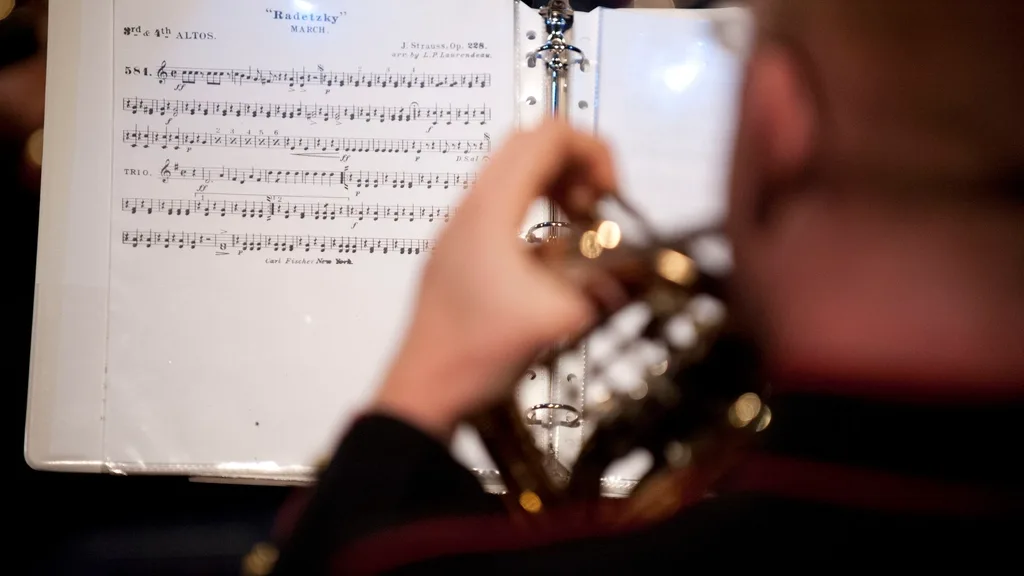
You have a printed piece to learn, and you would like to hear it first. There is no recording of your exact edition, or the recordings are too fast to follow. What you want is a sheet music player app: something that plays the notes on your page, at a speed you can manage, as many times as you need.
Plenty of apps play a MIDI or MusicXML file, and notation programs play what you type into them. That only helps if your piece already exists as a file. Most of what people practise is on paper: method books, exam pieces, church music, a teacher's photocopy, the one arrangement of a song you actually like. Sheetly is a sheet music player for the page in front of you. You photograph it, and it plays. Our step-by-step guide shows how to take a picture of sheet music and play it, from the photo to looping the hard bar. If you are comparing apps, our guide to the best music reader and player apps puts the ones that read your page next to PDF readers that only show it.
In this guide we explain why a player beats a recording for practice, walk you through the four controls that matter (tempo, loop, sound and record), with a picture for each, and show you a simple way to practise with them.
Why a player beats a recording for practice
A recording tells you what the piece sounds like when someone else plays it well. A sheet music player plays your page, at the tempo you can manage today, from any bar, as often as you need. There are three things a recording cannot do:
- Slow down without changing. A recording at half speed sounds smeared. A score at half speed is the same notes, cleanly, with the rhythm intact.
- Match your edition. The arrangement in your book is rarely the one that was recorded: simplified piano versions, transposed vocal keys, a hymnal harmonisation. A scan of your page is your page.
- Exist at all. Most of what people practise has no good recording: grade pieces, studies, duet parts, the second clarinet line, the alto part of an anthem. The page is the only source.
Recordings still show what a piece should become. But the slow, looped, bar-by-bar work in between needs a player that plays your notes.
How to use a sheet music player app
Step 1: Photograph the page or import a PDF
Hold the phone parallel to the paper, with the staves filling the frame, no shadow across the notes, and one page at a time rather than the open spread. If the music is already a PDF, import it instead: a PDF is the best input a scanner ever sees. Sheetly reads the photographed notation on our servers, and everything after that happens on your phone. The page comes back as a score: pitches, rhythms, clefs, key and time signature, and a piano part correctly braced as two staves. If you are still picking a sheet music scanner app, our comparison shows which ones play the page back and which only export a file.
Step 2: Listen once, straight through
Press play and listen at the written tempo, following the playhead as it moves across the notes. If anything sounds wrong, rescan with a better photo, or note the bar number for later. Our guide on how to scan sheet music covers the photo habits that help.
Step 3: Set the tempo
Tempo is measured in BPM, beats per minute. At 60 BPM you hear one beat every second, like a clock ticking. At 120 BPM you hear two beats every second.
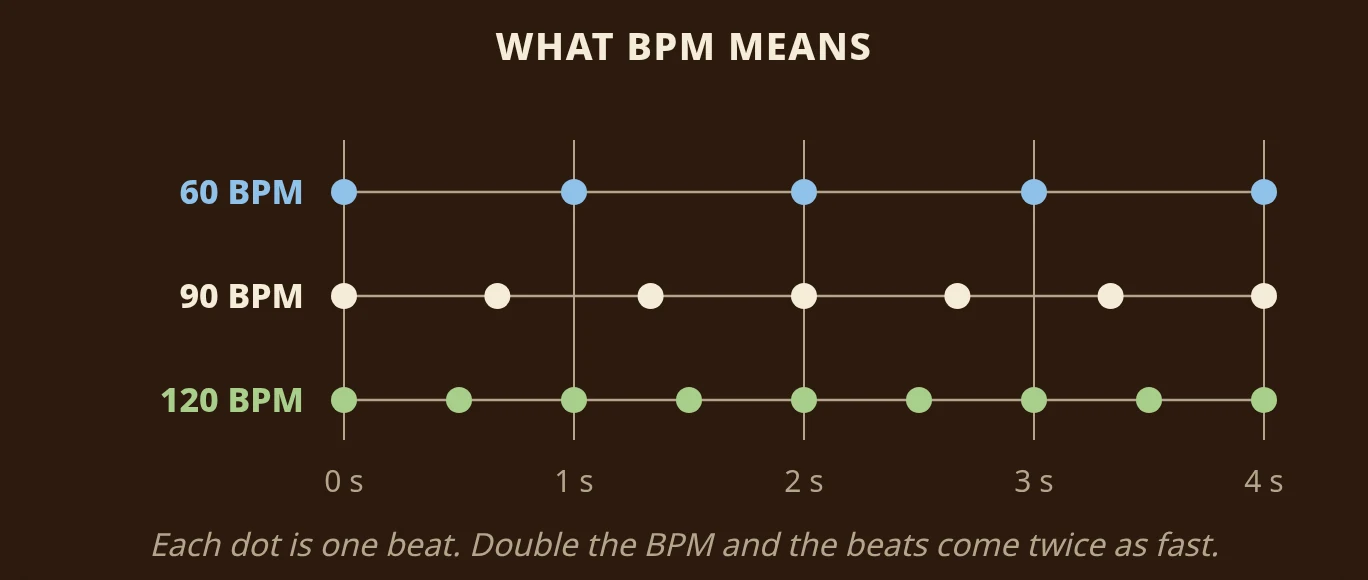
The metronome mark printed above the first bar tells you the composer's tempo, but almost nobody should practise a new piece at that speed. Take a hard passage down until it holds together, then walk it back up a few clicks at a time.
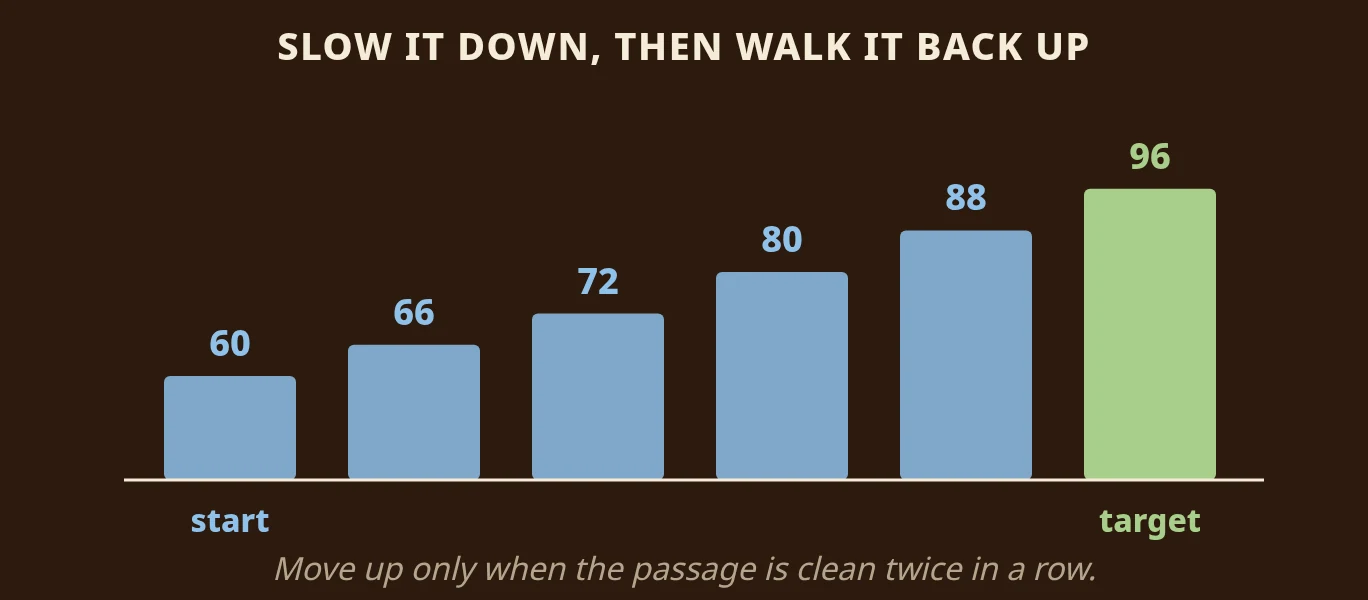
In Sheetly the tempo dial covers 40 to 200 BPM. Hold the minus or plus button and it walks on its own, so you can get anywhere in that range in a couple of seconds. The count-in counts at whatever tempo you set, so you always start in time. Because the score plays correctly at every speed, the slow version is a model to copy, not a blur.
The common mistake is jumping straight from a slow tempo to the full one. Move up only when the passage is clean twice in a row, and if it falls apart, go back one step.
Step 4: Loop the bars that matter
Most of the difficulty in a piece lives in a handful of bars. Select them and let them repeat.
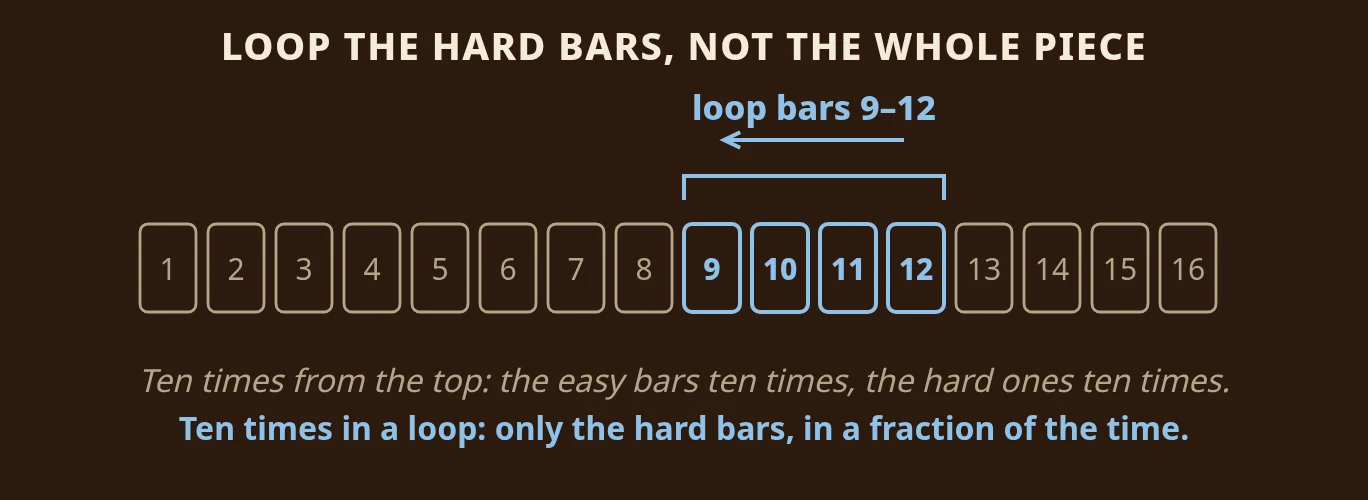
Playing from the top ten times practises the easy opening ten times and the hard bit ten times too, which takes a long time. Looping just the hard bars spends all ten repetitions where they are needed. When the loop is clean, widen it by a bar on each side so you practise getting into and out of the hard part.
Step 5: Change the sound
Hear the score on piano, organ, guitar, violin, flute, trumpet and the other supported instruments, or on a drum kit, without scanning again. Each sound shows you something different. A sustained organ makes long notes and voice leading easy to follow. A plucked or percussive sound makes the start of every note obvious, which is perfect for checking a tricky rhythm.
Step 6: Record a take
Record yourself playing along and listen back against the score. Most people's sense of their own timing is generous; the recording is not. You will hear the bar where you rushed, the note you cut short and the rest you skipped.
Practise with a player that plays your page
That is what we built Sheetly for. Photograph a printed page with your iPhone or iPad, and Sheetly plays it back with a playhead that follows the notes. The player is built around what people actually do when learning a piece: change the speed, repeat the hard part, change the sound and compare themselves with it. Each is a single control, and they combine.
Around them sit the things you never have to think about. The playhead gives a small tap for every note you drag it across, the progress bar takes you anywhere in the piece, and the page turns before the bar you are playing reaches the bottom of the screen. Scores you have scanned also play offline, so a page scanned at home works in a rehearsal room with no signal.
You can also ask the built-in coach about the notes. It has read the score you scanned, so you can ask about the fingering for a bar, why a rhythm keeps collapsing or which four bars deserve tonight's practice, and the answers name the bars. It opens on your piece rather than a blank prompt, with a couple of things it noticed in the score already waiting.
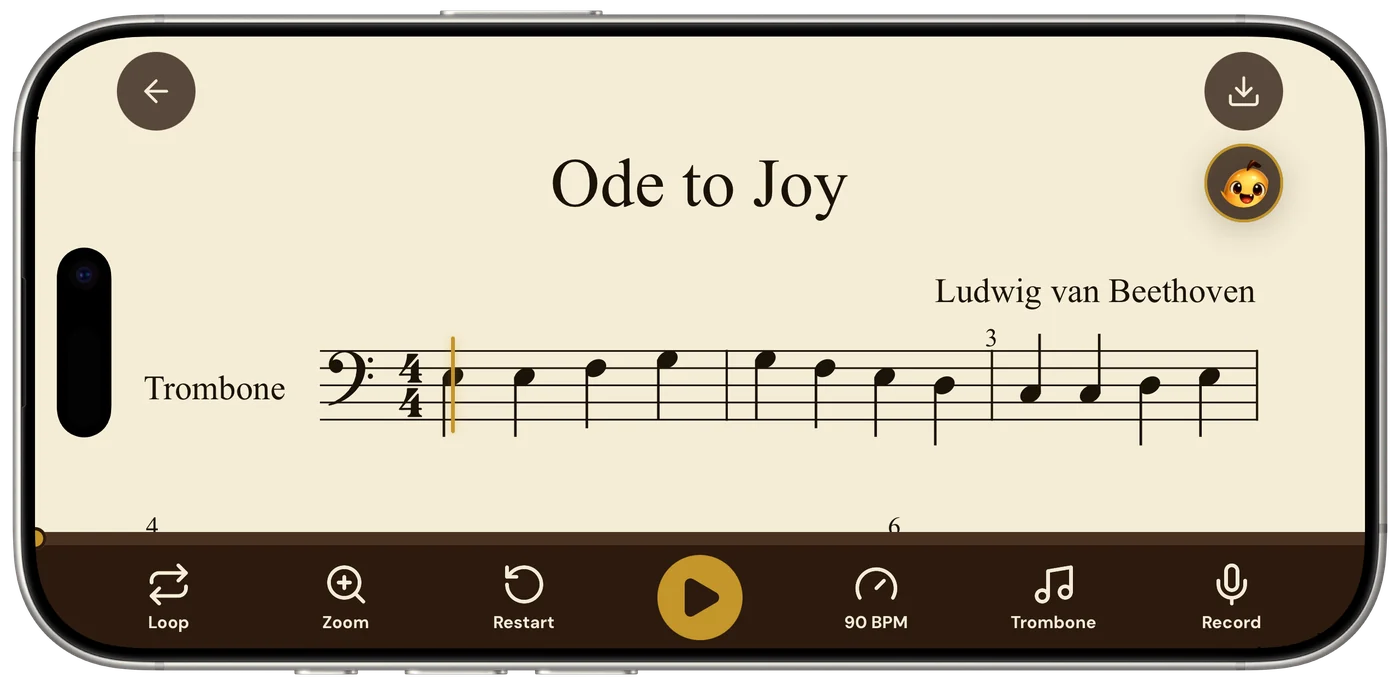
When you need the file rather than the practice, the score exports as PDF, MIDI or MusicXML. And one caution: if you can already hear a page in your head, you need none of this. If you cannot yet, playback used to check what you just read builds the skill. Used instead of reading, it quietly replaces it. Read first, then press play.
Questions
What does BPM mean in sheet music?
BPM means beats per minute, the speed of the beat, so 60 BPM is one beat every second. A metronome mark on the page gives the composer's BPM; you can practise below it and work up.
What is the difference between MIDI and MusicXML?
MIDI stores which notes sound and when, which suits playback and recording software. MusicXML stores the notation itself, with clefs, beams, ties and markings, so notation programs can open it as a score.
Does a sheet music player app work offline?
In Sheetly, scores you have already scanned play offline. Scanning a new page and asking the coach need a connection.
Can a sheet music player play any instrument?
Sheetly can play any score on any of its 25 instrument sounds, or on a drum kit, so you can hear a flute part on a clarinet or check a trombone part on the piano.