Sheet Music to MIDI: How to Convert a Printed Page (and When to Use MusicXML)
Want to turn sheet music to MIDI? In this guide, we explain what MIDI and MusicXML actually store, walk you through converting a printed page step by step, and show what to check afterwards, with a clear picture for each idea.

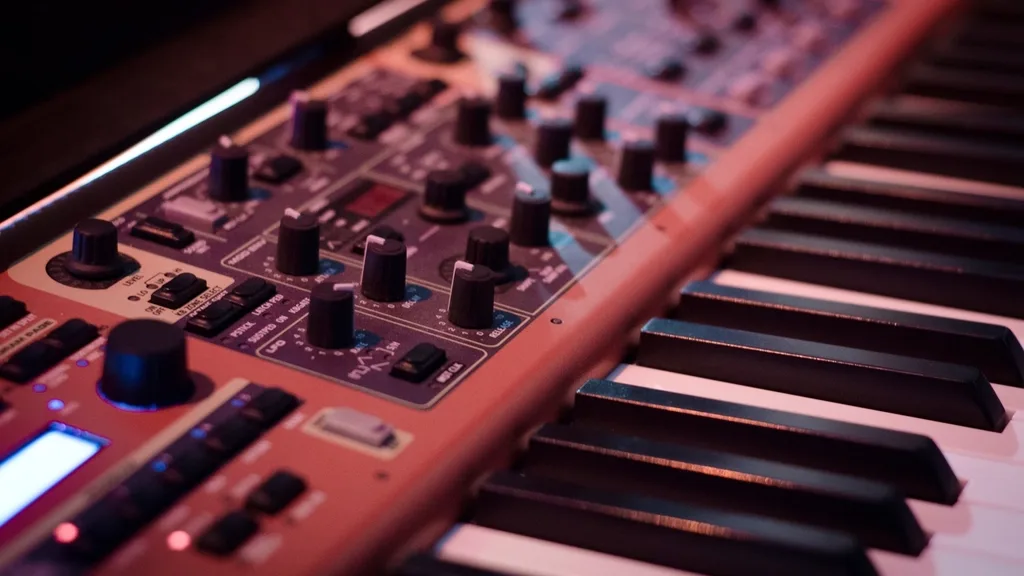
You have a printed piece and you want it as a file. Maybe you want to drop the melody into your DAW and build a track around it, transpose a song into a key a singer can reach, or give a student just the left hand. Whatever the reason, you need to get from sheet music to MIDI, or to its cousin MusicXML.
The good news is that you do not have to type the notes in by hand. Optical music recognition can read the notes off a photo or a PDF, and the result can be written out as MIDI or MusicXML. The catch is that these two formats store very different things, and choosing the wrong one quietly throws information away.
In this guide we explain what each format keeps, with a picture for each idea, walk you through converting a printed page step by step, and show you which parts of a score to check afterwards.
MIDI and MusicXML: what is the difference?
MIDI stores the performance
A MIDI file is a list of events: this note starts here, lasts this long, at this loudness, on this channel. Every key on a piano has a number. Middle C is 60, and each step up, black key or white, adds one. Instruments, keyboards and DAWs (digital audio workstations) all speak MIDI.
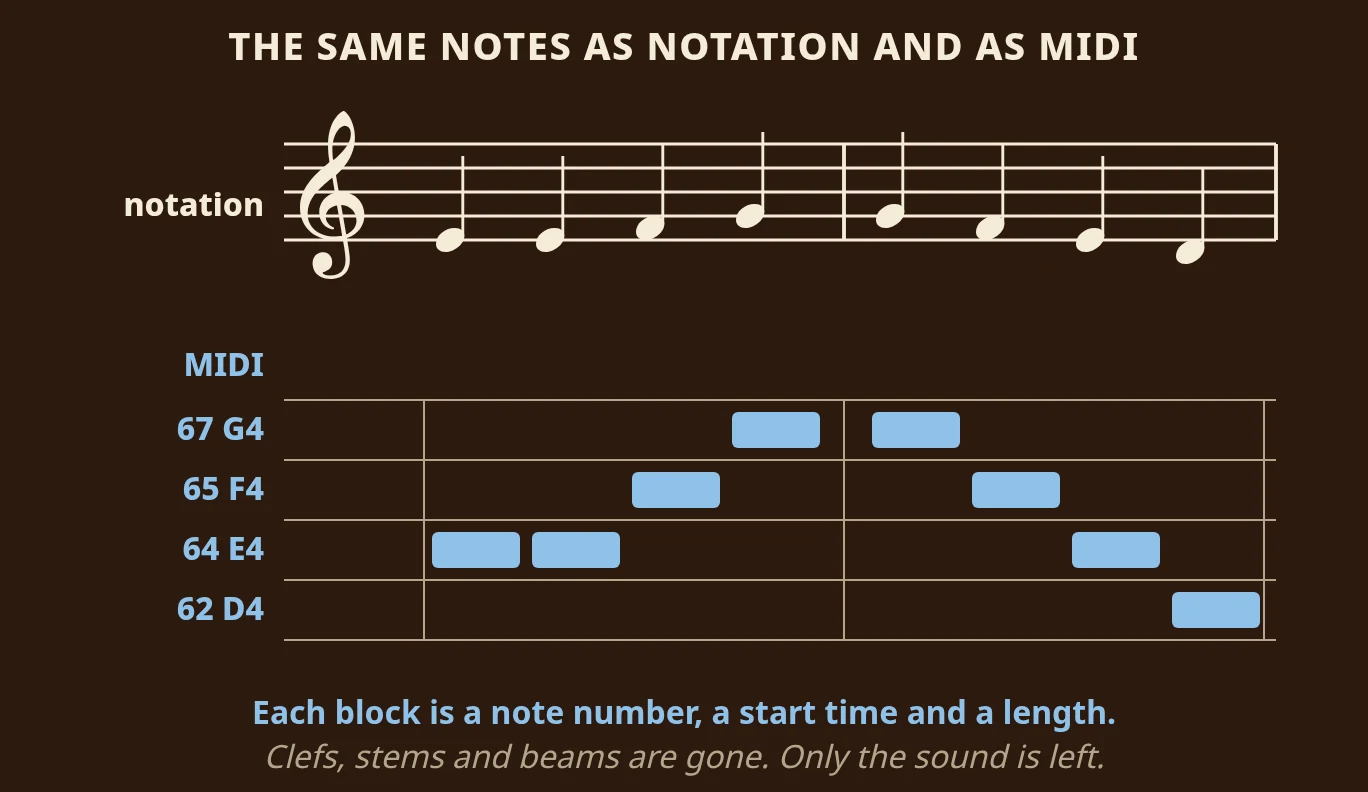
Here are the first two bars of Ode to Joy, first as notation, then as MIDI shown on a piano-roll grid, the way most DAWs display it. Each note becomes a block on the grid: its row is the note number (64 for E, 65 for F, 67 for G, 62 for D), its left edge is when it starts, and its width is how long it lasts. That is everything MIDI knows. The clef, the stems and the bar lines are gone.
What MIDI forgets
Because MIDI only knows which key is pressed, it cannot tell the difference between notes that sound the same but are written differently.
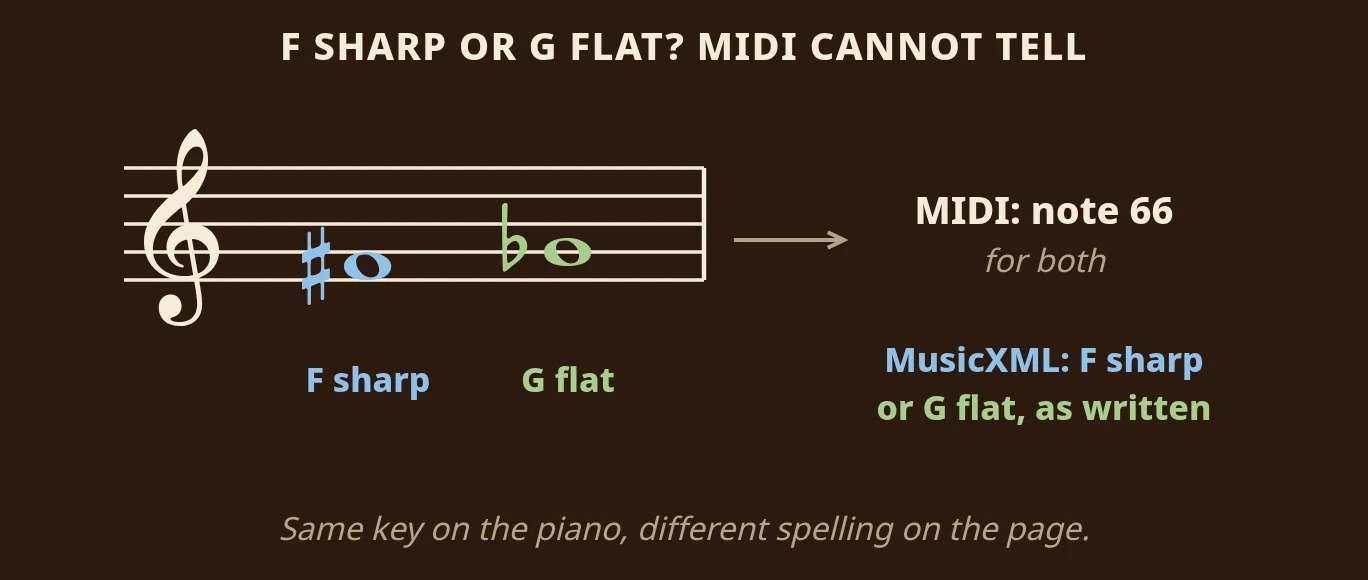
F sharp and G flat are the same black key on the piano, so both are MIDI note 66. On the page, though, they mean different things, and a musician reading the part expects the one that fits the key. MIDI also does not know which staff a note sits on, which hand plays it, that three notes were beamed together, or what the dynamics and articulation marks looked like. When you open a MIDI file in notation software, the program has to guess all of that, and it often guesses differently from the original.
MusicXML stores the notation
A MusicXML file is the written score itself: clefs, key signatures, note spelling, voices, beams, slurs, articulation, repeats and which hand plays what. MuseScore, Sibelius, Finale and Dorico all read and write it.
Here is a simple rule of thumb. If the file is going into a DAW such as Logic, Ableton, FL Studio or Reaper, export MIDI. If it is going into notation software, export MusicXML. If you are not sure, choose MusicXML: it carries strictly more, and converting it down to MIDI later is easy, while going the other way is guesswork. Our PDF to MusicXML guide goes deeper into that format.
How to convert sheet music to MIDI
Step 1: Get a good image of the page
Use a flat, square-on, evenly lit phone photo, a PDF or a photo you already have. The flatter and straighter the page, the cleaner the read. Our guide on how to scan sheet music covers the photo habits that help most.
Step 2: Let the page be read
Recognition finds the staves, clefs and key signatures, reads the notes and checks that each bar has the beats it should. In Sheetly this happens on our servers, and the page comes back as a score with a play button.
Step 3: Listen before you export
Play the score through once. A misread pitch is glaring to the ear and nearly invisible on a screen, and it is far cheaper to catch on your phone than three hours into a DAW session.
Step 4: Rescan anything that sounds wrong
Most errors come from the photo, not the music. A retake that is flatter and better lit fixes more than manual editing, in a few seconds of your time.
Step 5: Export the format you need
Sheetly exports MIDI, MusicXML and PDF. Pick using the rule of thumb above.
Step 6: Open it where it is going
Open MusicXML in notation software to transpose, pull out a part or start arranging. Drop MIDI into your DAW as a clip you can quantise, give any instrument sound and build on.
What comes through cleanly, and what needs a look
No conversion is perfect. Knowing where the losses are saves you blaming the wrong thing.
Usually comes through cleanly
- Pitches and rhythms, the substance of the page.
- Clefs, key signatures and time signatures.
- Bar structure, and repeat marks in straightforward cases.
- Which staff a note belongs to, which keeps two-hand piano music readable in MusicXML.
Often needs a look
- Complicated repeats: first and second endings, D.C. al Coda and other jumps that assume a human reader.
- Ornaments: a trill is one symbol on the page, but in MIDI it has to become many fast notes.
- Nested tuplets, where the arithmetic gets genuinely hard.
- Dynamics and expression marks, which are as much interpretation as instruction.
- Pedalling, fingering and editorial marks, which vary between editions.
- Lyrics: MusicXML can carry them; MIDI has nowhere to put them.
Repeats are worth understanding, because MIDI has no repeat signs at all. It needs the bars in the order they are played.
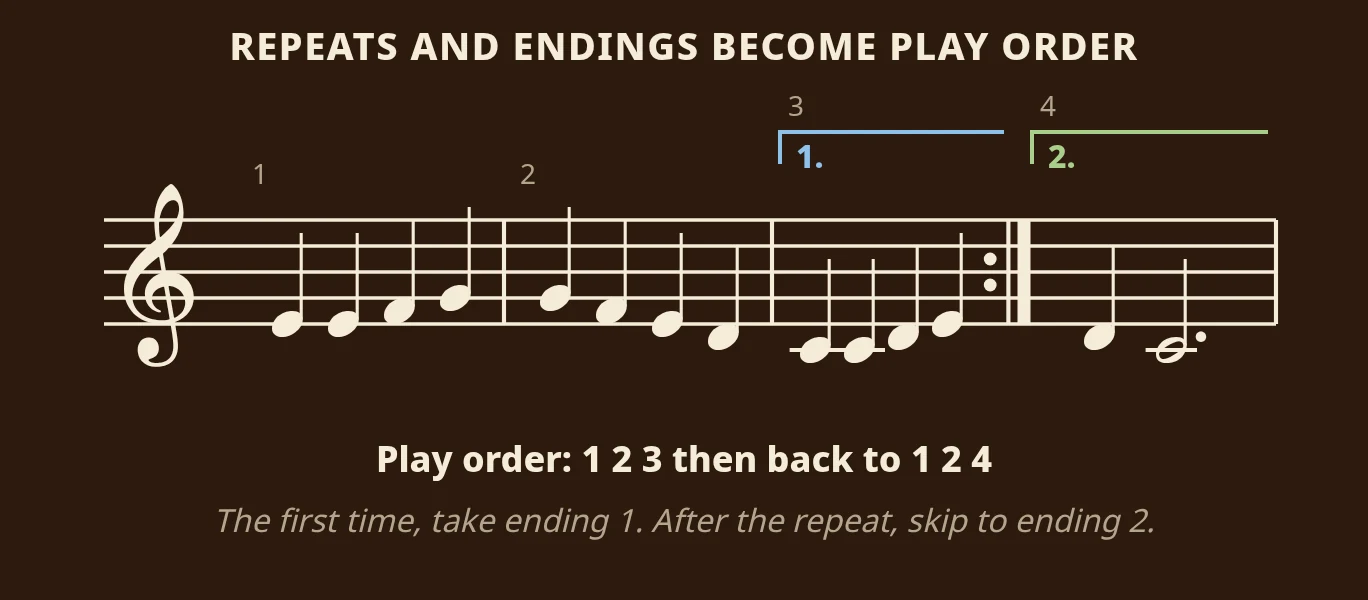
In this example, the repeat sign at the end of bar 3 sends you back to the start. The first time through, you play the bar under the "1." bracket. The second time, you skip it and play the bar under the "2." bracket instead. So the play order is 1, 2, 3, 1, 2, 4. If a converted file seems too short or too long, count the bars against the page and check the repeats first.
Or skip the file and practise
If your goal is to learn the piece rather than produce something, you may not need a file at all. Looping four bars at a slower tempo and playing along is usually the shorter route. That is what we built Sheetly for. Photograph a printed page with your iPhone or iPad, and Sheetly plays it back with a playhead that follows the notes. Loop a bar, slow it down, hear it on another instrument, record your own take, or ask the built-in coach about the notes in a bar. And when you do need the file, export MIDI, MusicXML or PDF from the same score.
Questions
Will the MIDI file sound like a real performance?
No. MIDI from a scan is a literal reading of the page, with exact durations, even dynamics and no rubato or unmarked pedalling. It is a starting point for practice and editing, not a performance.
Does converting sheet music to MIDI break copyright?
Scanning music you own for your own study is generally fine in most places, as photocopying a page for your own use is. Sharing the file is different, because copyright in the composition and in the published edition can both apply, so check the position where you live before sharing anything.
Can I convert handwritten sheet music to MIDI?
Not reliably. Optical music recognition is trained on printed notation, and handwriting varies too much between writers. Typeset the piece in notation software first, then export MIDI from there.
What MIDI note number is middle C?
Middle C is MIDI note 60. Each half step up adds one, so the E above it is 64 and the G is 67.