
What a sheet music player app does
A sheet music player app turns written notation into sound. The useful ones let you control the tempo, loop a passage and change the instrument, because the point is not to listen to a piece but to learn it. The difference between them is where the music comes from: most play files somebody else prepared, while Sheetly plays the page you photograph with your phone.
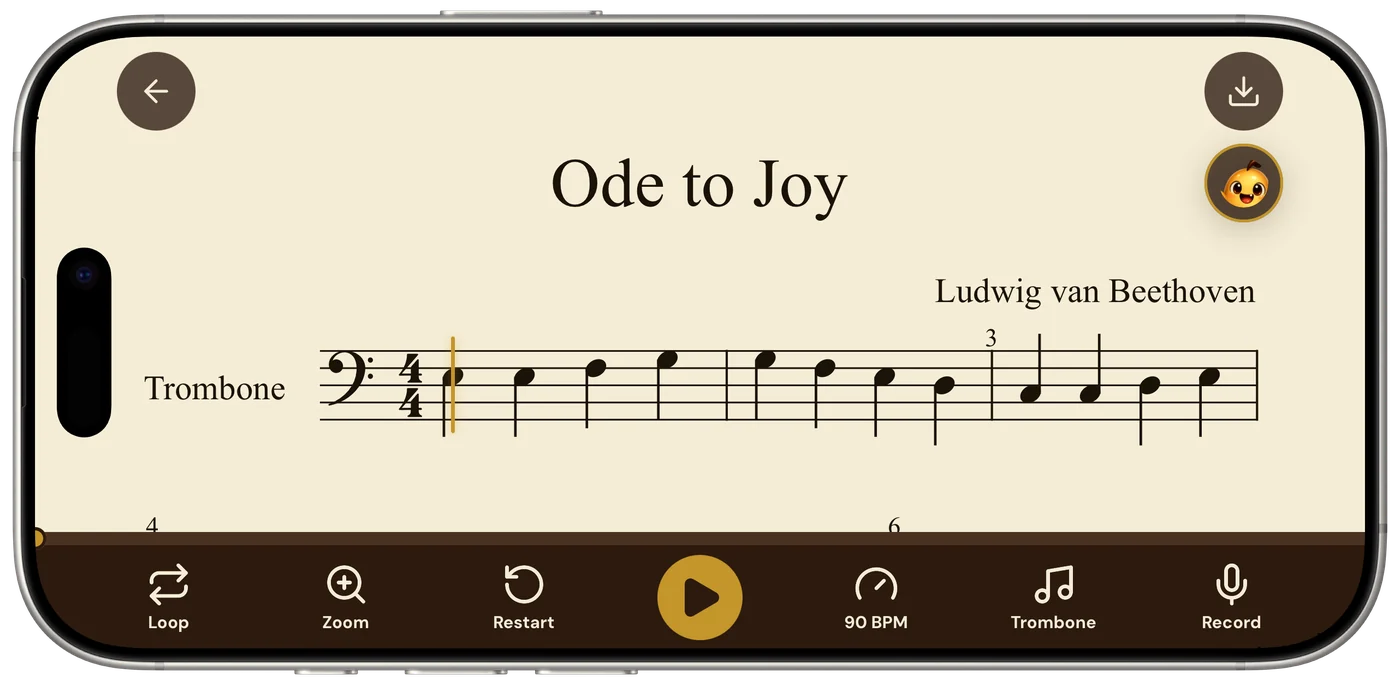
- Sheetly photographs a printed page, or imports a PDF, and hands back a score you can press play on.
- Playback runs at any tempo, loops any bar or passage, and plays on piano, organ, violin, flute, trumpet and other instruments.
- You can record your own take against the score, and ask a coach that has read the actual notes of the piece.
- Scores you have scanned play offline. Scanning a new page and asking the coach need a connection.
Plenty of apps will play a MIDI or MusicXML file, and notation programs play whatever you type into them. That helps if the piece you are learning already exists in that form, and it does not help at all if what you have is a book on the stand. Method books, exam pieces, church music, a photocopy from a teacher, the one arrangement of a song you actually like: most of the music people practise is on paper, and a player that cannot read paper is a player for other people’s music.
Sheetly is a sheet music player for the page in front of you. The scanner exists so that the player has something to play.
From the page to the play button
You photograph the page, Sheetly reads the notation and returns a score, and the score plays. The reading is done by optical music recognition on our servers, takes a few seconds, and works best on a flat, straight-on, evenly lit photograph of printed music. From there, everything happens on the phone.
- Photograph the pagePhone parallel to the paper, staves filling the frame, no shadow across the notes. One page at a time, not the open spread. The habits that make a clean read are here.
- Or import a PDFIf the music is already a file, skip the camera. A PDF is the best input a scanner ever sees.
- Wait a few secondsThe page is read and comes back as a score: pitches, rhythms, clefs, key and time signature, and a piano part correctly braced as two staves.
- Press playListen once straight through at the written tempo. If anything sounds wrong, rescan or note the bar number for later.
- Start practisingSlow it down, loop the passage that falls apart, switch the sound, record yourself against it, ask the coach what to drill.
How well it reads the page is a fair question, and we answer it with numbers rather than adjectives. On Sheetly’s own 31-piece benchmark, scored by strict F1, where a note counts only if pitch, onset and duration are all correct, Sheetly scored 96% on clean scores and 95% on the same pieces degraded to simulate a phone photograph. The method, and how the open-source alternatives scored on identical inputs, is written up here.
Why not just find a recording?
A recording tells you what the piece sounds like when someone else plays it well. A sheet music player tells you what your page sounds like, at whatever tempo you can manage today, from whatever bar you choose, as many times as you need. For learning a piece, those are different tools, and the second one is the one you use every day.
Three things a recording cannot do:
- Slow down without changing. A recording at half speed is a smear. A score at half speed is the same notes, cleanly, with the rhythm intact, which is what you need to hear when you are working out a passage.
- Match your edition. The arrangement in your book is rarely the one on the recording. Simplified piano versions, transposed vocal keys, a teacher’s own fingering edition, a hymnal harmonisation: the recording is of something else. Your scan is of your page.
- Exist at all. For most of the repertoire people actually practise, there is no good recording. Grade pieces, studies, duet parts, the second clarinet line, the alto part of an anthem. The page is the only source, and the page does not make a sound until something reads it.
None of this makes recordings useless. Hearing a piece played well is how you learn what it is supposed to become. But the work in between, the slow, looped, hands-separate, bar-by-bar part, wants a player that is playing your notes.
If you can already hear a page in your head, you do not need any of this. If you cannot yet, playback is a shortcut that can go either way: used to check what you just read, it builds the skill; used instead of reading, it quietly replaces it. Read first, then press play.
The practice tools, one at a time
The player is built around the four things people do when they are learning a piece rather than listening to one: change the speed, repeat the hard part, hear it on a sound that suits the music, and compare themselves to it. Each is a single control in the player, and they combine. Around them sit the things you never have to choose: the playhead taps once for every note you drag it across, the progress bar takes you anywhere in the piece, and the page turns before the bar you are playing reaches the bottom of the screen.
Tempo
Set any tempo. Take a passage down until it holds together cleanly, then walk the speed back up a few clicks at a time. The score plays correctly at every speed, which makes the slow version a model to copy rather than a blur to guess at. Hold the − or + button and the dial walks on its own, covering the whole 40 to 200 BPM range in about two and a half seconds. The count-in counts at the tempo you set rather than at a fixed speed of its own.
Loop
Most of the difficulty in most pieces lives in a handful of bars. Select those bars and let them repeat. Practising the piece from the top ten times practises the easy opening ten times and the hard bit once; looping turns that around.
Instruments
Hear the score on piano, organ, violin, flute, trumpet and the other supported instruments. This is partly pleasure and partly practical: a sustained organ sound exposes voice leading that a piano attack hides, and a plucked harp makes a rhythm problem obvious in a way a warm piano does not.
Record a take
Record yourself playing and hear the take against the score. Most people’s sense of their own timing is generous. The recording is not.
Export when you want the file
When you need the file rather than the practice session, the score exports as PDF, MIDI or MusicXML. What each format is for is explained here.
Then ask about the piece
Every other player stops at the sound. Sheetly’s coach has read the score you scanned, so you can ask it questions about the actual notes on your page: what fingering to use in a specific bar, why a rhythm keeps collapsing, which four bars are worth tonight’s practice. The answers refer to what is written, by bar number. It opens on your piece rather than on a blank prompt: before you type anything, two or three things it noticed in the score are waiting: a leap in a named bar, a passage that is an earlier passage again.
Ask Sheetly: a coach that has read your score
Not a chatbot bolted onto a music app. The coach has the actual notes of the page you just photographed, so you can ask about your bar 12 and get an answer about what is written in it.
We know of no other sheet-music scanner that does this. Every other tool on this page hands you a transcription and stops.
 Free to download · iPhone and iPad
Questions
Is there an app that plays sheet music from a photo?
Yes. Sheetly photographs a page of printed sheet music, reads the notation with optical music recognition, and plays the result back on the phone. You can set the tempo, loop a passage, change the instrument, record your own take against the score, and ask a coach about the piece. It is on iPhone and iPad.
Can a sheet music player app slow the music down?
Yes. Sheetly plays a scanned score at any tempo, and because it is playing notes rather than an audio recording, the slow version is clean rather than smeared. The usual method is to take a passage down until it holds, then raise the speed a little at a time. Holding the minus button walks the tempo down on its own, so the trip from the written tempo to a practice tempo is one press rather than thirty taps.
Can I loop one bar of sheet music?
Yes. In Sheetly you select a bar or a passage and let it repeat while you practise it. Looping the hard bars is the single most effective thing a sheet music player adds over a recording.
What instruments can the sheet music player use?
Sheetly plays scores on piano, organ, guitar, violin, flute, trumpet and the other instruments on the list, or on a drum kit. The instrument is a playback choice, so a violin part can be heard on piano and a hymn on organ without rescanning anything.
Does a sheet music player app work offline?
Partly. Scores already scanned into Sheetly live in the library and play back without a connection. Scanning a new page and asking the coach both need a connection, because recognition and coaching run on our servers.