A Playhead You Can Feel: Tapping Through a Rhythm Before You Play It
Can you feel a rhythm before you hear it? In this story, we explain why the Sheetly playhead taps once for every note under your finger, why we threw away a smoother version and a finished feature, and how to use tapping to read rhythm.

Open a scanned score in Sheetly, put a finger on the playhead and drag it across the page. Every note it crosses gives you a small tap. A bar of quick notes feels busy under your finger. A note held for four beats feels like nothing at all, until the next one arrives. That is a playhead you can feel, and it turns out to be a surprisingly good way to understand a rhythm.
Rhythm is the part of music that is about time: when each note starts and how long it lasts. Most people learn it with their ears, by counting and listening. But you can also learn it with your hands, by tapping. Feeling where the notes fall, before you play a single pitch, is one of the oldest tricks in music teaching.
In this story, we explain how to use tapping to read a rhythm, then take you behind the scenes of the playhead: a speed limit chosen to be faster than the music, a smoother version we threw away, and a finished feature we deleted before it shipped.
Why tapping a rhythm helps you read it
When you play a new passage, your brain has to do several jobs at once: read the notes, find them on your instrument, and get the timing right. Timing is usually the first thing to slip. Tapping takes the notes away, so your whole attention goes to the rhythm.
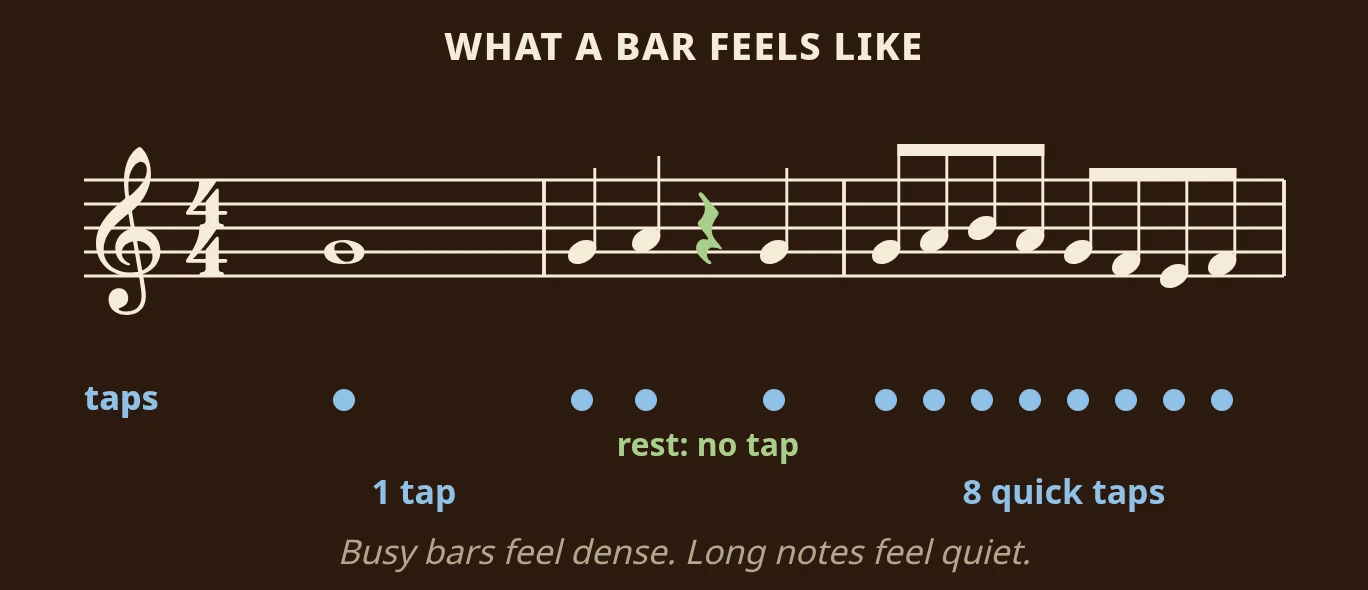
Look at the three bars above. The first bar is a single whole note (a semibreve): one tap, then four beats of stillness. The second bar has three quarter notes (crotchets) and a quarter rest, so you feel three taps with a gap where the rest is. The third bar is eight eighth notes (quavers), two to every beat, and it feels busy and even. You can tell all of that with your eyes closed.
How to tap through a rhythm
- Count the beat out loud. For 4/4 time, say "1, 2, 3, 4" at a slow, steady speed. Keep counting the whole time.
- Tap once for every note. Tap a finger on the table each time a new note starts, while you keep counting. For eighth notes, count "1 and 2 and" so each tap has its own word.
- Lift your hand for the rests. A rest is a note-shaped hole. Lifting your hand off the table helps you feel the silence instead of rushing through it.
- Check yourself. Tap along with a correct playback of the bar. If your taps and the playback do not line up, find the spot and tap that beat again.
- Then play. Once the rhythm feels easy under your finger, add the notes on your instrument.
The most common mistake is tapping the rhythm without counting the beat. Without the count, long notes and rests shrink and quick notes stretch, and you end up tapping a rhythm that is not on the page. Keep counting, even when it feels slow.
How we built a playhead you can feel
There is no new button in the player for any of this, and nothing to show on a screenshot. All the work went into a part of the app you are not supposed to notice. Here are three decisions behind it, and what each one cost.
The speed limit had to be faster than the music
Anything that taps once per note needs a speed limit, or a quick drag turns into a buzz. The question is where to set it, and we set it below the fastest thing the music does. At 120 beats per minute, a sixteenth note (a semiquaver) lands every 125 milliseconds, so the limit has to allow taps closer together than that. Any slower, and it would swallow notes inside a fast bar and give your finger a rhythm the page does not contain.
Set that way, the limit almost never switches on. A bar of sixteenth notes comes through whole. The only gesture it catches is a fling, where the notes fly past faster than a finger can tell them apart, and a blur is the honest answer.
Rests do not tap. A rest should feel like a hole, so the taps follow the notes on the page rather than a clock, and the silence lands where the music says it does.
The smoother version was worse
While we were working on the playhead, we also tried a new way for it to glide from note to note: a shorter movement at a constant speed. On paper that is the smoother option. In the hand, it felt late.
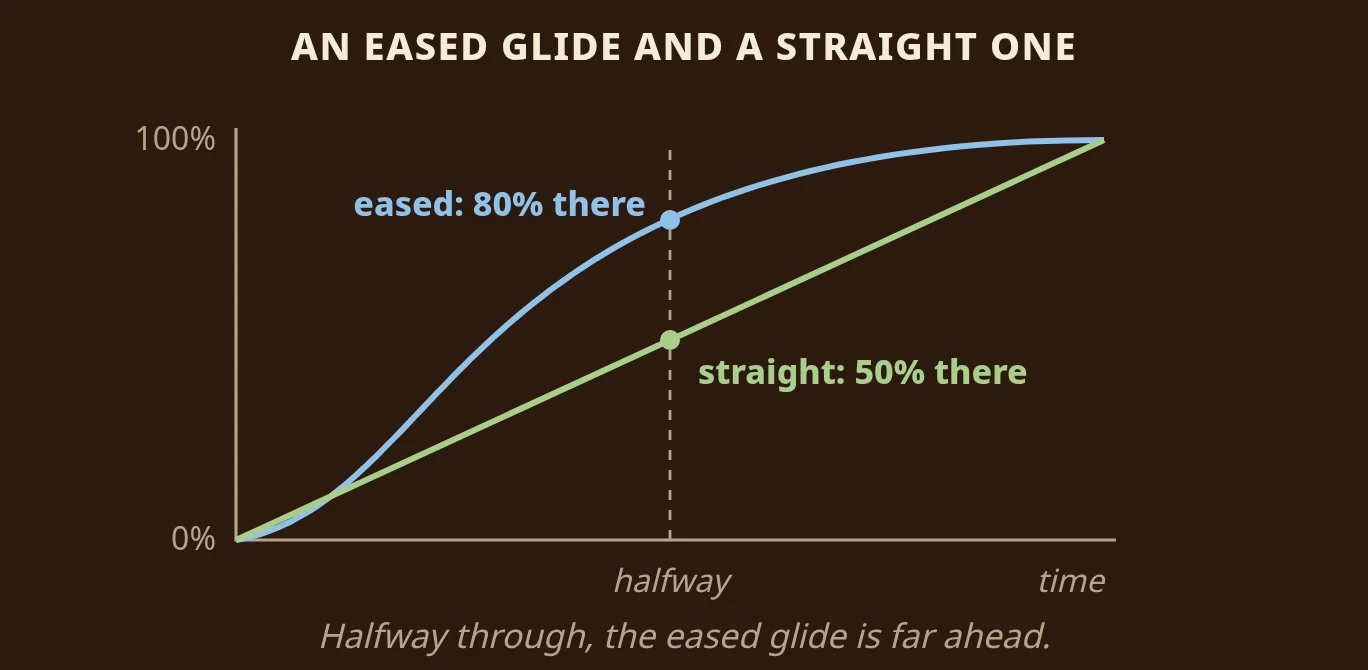
The reason is the shape of the movement. A standard eased movement starts fast and slows down as it arrives, so halfway through its time it is already about 80% of the way there. A straight, constant-speed movement is exactly 50% of the way there at the halfway point. Your eye reads where the playhead is, not when it stopped, so the eased glide felt ahead of the music and the straight one felt behind. The shorter animation finished sooner and still felt slower, so we put the old one back.
The feature we deleted
Somewhere in the middle of all this, we built saved practice spots: mark the bar you keep breaking and come back to it tomorrow. It worked. We deleted it before it shipped.
It added another control to the player, and the player's best quality is that it has almost none: a page of music, one bar of controls, and the assumption that your hands are on an instrument rather than on your phone. Every extra button takes a little of the page away, and a feature that is merely useful does not pay for that. The bar that keeps breaking can already be looped in two taps, and it is not the kind of thing you forget.
Small things you can feel now
The rest of the work was the same kind of thing, and all of it is in the app today:
- The progress bar is draggable. Drag it to jump anywhere in the piece, rather than only seeing where you are.
- The tempo buttons repeat when held. Hold minus or plus and the tempo walks on its own, from 40 to 200 BPM in about two and a half seconds.
- The page turns ahead of you. The bar you are playing stays where you can read it, instead of drifting down behind the controls.
- The count-in counts your tempo. Set the score to 60 and you are counted in at 60.
- The coach opens on your piece. Before you type anything, it suggests two or three things it noticed in the score you scanned, such as "bar 12: leap of a 5th" or "bars 5 to 7 are bars 1 to 3 again".
Feel the rhythm of your own part
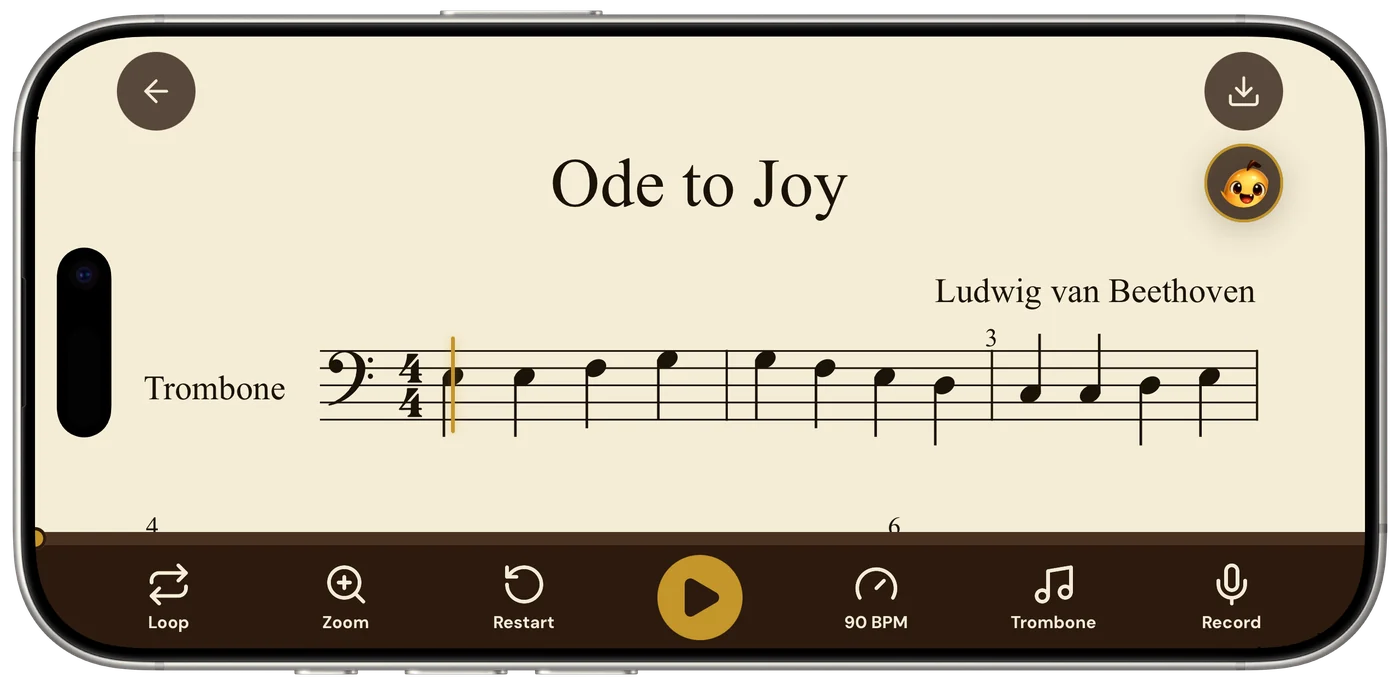
Take a photo of a printed page with your iPhone or iPad, or import a PDF, and Sheetly plays it back with a playhead that follows the notes. Put a finger on the playhead and drag it slowly through a bar you find hard to count. Feel where the notes fall and where the rests are, then press play and hear the same bar at whatever tempo you choose.
Tap it first, then play it. It is a small habit, and it makes new rhythms much less scary.
Questions
Does the Sheetly playhead give haptic feedback?
Yes. Dragging the playhead across a score taps once for every note it passes, so a bar of sixteenth notes feels busy under your finger and a long held note feels empty. Rests do not tap.
How do I change the tempo quickly in Sheetly?
Hold the minus or plus button beside the tempo in the player and the tempo walks on its own. The whole range, 40 to 200 BPM, takes about two and a half seconds to cross.
What does the Sheetly coach show before you ask it anything?
Two or three things it noticed in the score you scanned, such as a leap in a named bar or a passage that repeats earlier bars. They come from your own page, not from a general list of practice tips.
Why should I tap a rhythm before playing it?
Tapping takes the notes away, so all of your attention goes to timing. Count the beat out loud, tap once for each note, lift your hand for rests, and only then add the notes on your instrument.